
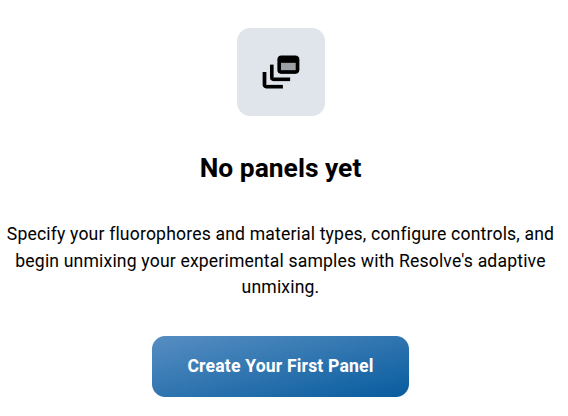
When you first login to Resolve you will see that no panels have been created.
Creating a New Panel
- Access panel creation
- Within your workspace, click “Create Your First Panel”
- Define panel information
- Panel Name: Must be unique within your workspace
- Instrument: Select the instrument configuration from the dropdown
- Add fluorophores
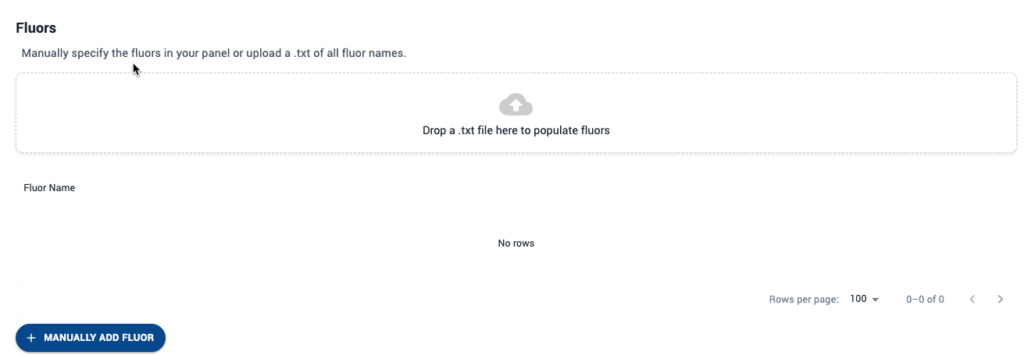
- Next, you inform the system of all fluorophores used in your panel.
- The Platform supports manual entry or .txt file upload. For both methods, enter the fluorophore names exactly as you would like them to appear in the unmixed files.
- To manually add each fluor, click the “+ Manually Add Fluor” button at the bottom of the Fluors panel and type in your fluorophore name.
- .txt file upload: Recommended for efficiency
- File format: One fluorophore per row, no headers
- Define materials
- Add all material types you have used for generating and multicolor samples (e.g., “cells”, “beads”, cryo PBMC”, “activated PBMC”, “fresh whole blood”) using the “+ Add Material” button
- By default, “Cells” and “Beads” are available when you select “Add From Workspace”.
- Each material needs a unique name
- If you have previously set up other panels, you may automatically populate the materials from your workspace using the “Add From Workspace” button.
- If the material is synthetic (e.g. Beads or cell mimics) click the “Beads” checkbox to the right of the material name
- Add all material types you have used for generating and multicolor samples (e.g., “cells”, “beads”, cryo PBMC”, “activated PBMC”, “fresh whole blood”) using the “+ Add Material” button
- Create panel
- Review all information on this page for accuracy
- When ready, click “Create Panel”
- You will then be navigated into your panel home page. At the top left you will see the details of your panel. Additionally you will see the Controls card and the Resolve Runs card.
- Optional: Delete/archive panel
- You can delete a panel so long as no control files have been uploaded to it. Please note that delete is permanent.
- If the panel has control files but you no longer want it visible in the workspace, a panel can be archived. To un-archive a panel please contact support@ozette.com